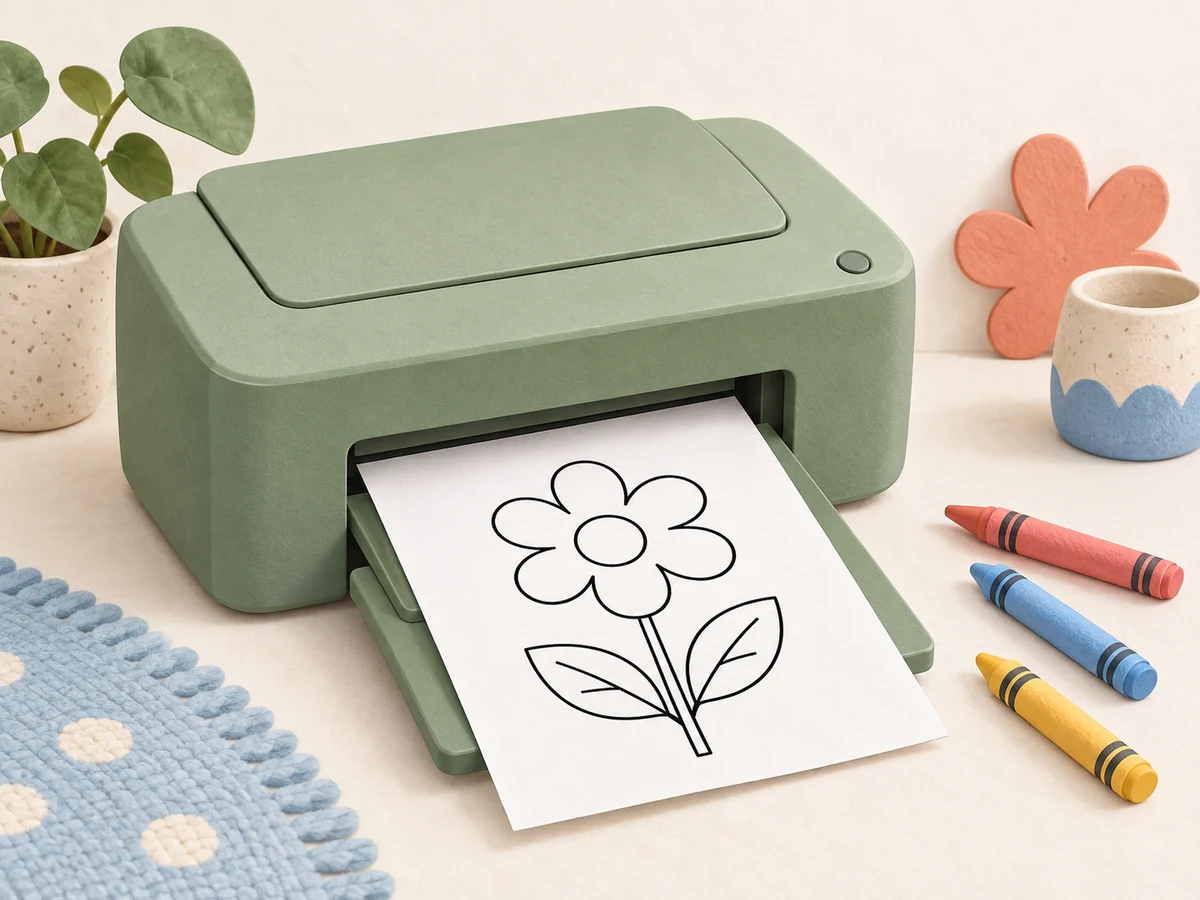
A coloring page is ready, the crayons are out, and the printer produces half a picture. Before trying again, check three things: the file you opened, the paper in the tray, and the print preview.
To print coloring pages, open the downloaded PDF, select the paper size actually loaded in your printer, and preview one page. For ordinary coloring pictures, choose Fit if the edges are being cut off. Print one test sheet before selecting more pages. Use Actual size when the creator requires exact dimensions, and check that nothing is cropped.
This guide is for parents preparing pages at home. Button names vary between apps and printers; the examples below use Adobe Acrobat Reader on a computer. The illustrations explain the setup and are not screenshots or examples of a specific KidsColorsBook download.
Before you print: open the actual download
Start with the file supplied by the creator. A shop gallery image, a screenshot and the downloadable coloring page are different things. If you see a price, navigation menu or product description in the preview, you may be printing the webpage.
Look in the folder where you saved the download. If it is a ZIP file, open or extract it and find the relevant PDF. Some packs have separate files for pictures, instructions and games. Read the included printing notes before choosing a page.
Want a page to start with? Visit the KidsColorsBook Free Printables library and follow the download instructions for your chosen item. This article does not include a separate downloadable worksheet.
Five steps for a clean first print
1. Choose one picture
Open the page your child wants to color. For the first attempt, choose a simple picture with a clearly visible outer edge. It gives you something easy to inspect before you commit to printing a whole pack.
In Reader, open Print and select your physical printer. Choose Current page, or enter the page you need under Pages. Check the miniature preview: a cover sheet can make the file’s page order different from the numbers printed on the artwork. Adobe’s Reader printing guide explains these controls.
2. Match the paper in the tray
Read the paper wrapper or check the tray setting. Select A4 if you loaded A4, and Letter if you loaded US Letter. Do this even when the PDF was designed for the other size. The next section shows both situations.
3. Check the whole picture in preview
Look at the top, bottom and both sides. Is the complete drawing visible? Is it upright? Has a landscape picture been squeezed into a portrait layout? Adjust orientation if needed, then check again.
If an ordinary coloring picture extends beyond the available area, try Fit. For a template that must keep exact measurements, follow the creator’s instructions instead. The scaling comparison below explains the difference.
4. Keep the first run small
Select one copy. For a loose coloring sheet, single-sided printing is a straightforward starting choice. Leave booklet or multiple-pages-per-sheet layouts off unless you deliberately want a smaller activity. These options are described in the Reader guide linked above.
Start with the paper and settings you normally use successfully. There is no need to buy special stock before checking the file. If you want heavier paper later, confirm that your printer supports it.
5. Inspect the sheet before printing more
Put the test sheet beside the preview. Check that every important outline is present and that there is enough room for the activity. If you are making matching game pieces, also compare their sizes before printing the remaining pages.
Keep a successful test as your reference. If the result is wrong, change one setting at a time and print the same page again. Comparing the same picture makes it easier to see which change helped.
A4 and US Letter: match the paper in your tray
A4 measures 210 × 297 mm. US Letter measures 8.5 × 11 inches, approximately 216 × 279 mm. A4 is slightly narrower and taller. These dimensions appear in Epson’s paper-size reference; its paper-weight limits apply to the model documented there, not every printer.

| What you have | Paper setting | What to check |
|---|---|---|
| US Letter PDF, A4 paper | A4 | Inspect both side edges in preview. |
| A4 PDF, US Letter paper | Letter | Inspect the top and bottom in preview. |
| PDF and paper are the same size | The matching size | Still check all edges and the creator’s scaling instructions. |
For example, Cute Animals Adventures is a US Letter PDF with 19 coloring pages for ages 3–7. If you already have that file and use A4 paper, choose A4 as the output paper size and check a single page before printing the rest. This is a file-format example, not a claim that every printer has been tested with the pack.
Fit, Actual size or Shrink oversized pages?
Adobe describes the scaling options this way: Fit adjusts a page to the printable area; Actual size leaves its dimensions unchanged and can crop content that does not fit; Shrink oversized pages reduces larger pages without enlarging smaller ones.
For a coloring picture, preserving the complete drawing is usually the useful goal. For a measured craft template, resizing may defeat the purpose. Follow its instructions and use the specified paper when necessary. Do not assume that a setting suitable for a coloring sheet will also suit a cut-and-assemble project.
After changing scaling, revisit the preview. A white margin can be perfectly usable; there is no reason to chase edge-to-edge printing just to remove empty space. What matters here is keeping the picture intact.
If the printed page looks wrong
Use this as a short checking order. These are diagnostic starting points, not promises that every printing problem has the same cause.
| What you see | First thing to check |
|---|---|
| Part of the drawing is missing | Compare preview with the sheet. Recheck paper size and scaling. |
| A tiny picture in one corner | Confirm you opened the intended file and did not choose a multiple-page layout. |
| Shop text or a website address | Return to the download and open the supplied PDF. |
| The cover prints instead of the picture | Check the selected page in the print preview. |
| Faint or broken outlines | Compare with the original file on screen; then consult the printer’s own print-quality guidance. |
| The computer asks where to save a file | Check that you selected the physical printer rather than a PDF output option. |
If the preview is already wrong, solve that before printing again. If the preview looks complete but the paper does not, note your printer model, paper size, app and selected settings before consulting its support instructions. That is more useful than repeatedly sending the same job.
Printing from a phone or tablet
On an iPhone or iPad, Apple says to use an AirPrint-compatible printer and connect the device and printer to the same Wi-Fi network. Open the document in a supported app, look under Share or Actions for Print, select the printer and check the page options. Not every app supports printing. See Apple’s AirPrint instructions for the current steps.
On any mobile device, inspect the available preview before sending the job. If you cannot find the controls you need, consult the app or printer’s instructions, or open the PDF on a computer where you can check the settings described above. Do not assume every mobile print panel offers the same choices.
A small routine for next time
Keep the original download in a clearly named folder, with its instructions. Beside your successful test sheet, note the paper size, app and setting that worked. This is a starting point for the same file and printer, rather than a universal preset.
Then ask your child which picture they want next. Print that selection and leave the rest in the file until needed. If you are still deciding which sort of pack to choose, our guide to choosing printable activity books compares page types and setup needs.
Frequently asked questions
Can I print a US Letter coloring PDF on A4 paper?
For an ordinary coloring picture, you can usually adapt the print using the correct output paper setting and a fitting option. Check the preview and one sheet first. Exact-size templates need their creator’s instructions.
Should I always print at 100 percent?
No. The right choice depends on whether the activity needs exact dimensions and whether the content fits the printable area. Use the scaling comparison above, rather than applying one rule to every download.
Do I need to print every page in the pack?
No. Choose the pages you want and check their previews. Keep any instructions needed for a particular activity with it. There is no need to turn an entire download into a stack of paper at once.
What if I do not have a printer?
Ask a local print service whether it accepts your file format and what a single test page costs. Check the file’s use terms before sharing it with a service. Bring the page selection and paper-size instructions so the job is clear.

5 notes from other parents